Inside InkNode: reading a sensor every 10 seconds without redrawing the screen
How InkNode reuses sensor and weather readings between e-paper refreshes, and what can go wrong when those jobs share one Python loop.
InkNode is a room dashboard built around a Raspberry Pi and an e-paper display. It reads a local temperature and humidity sensor, fetches outdoor weather, and publishes readings over MQTT. A browser page provides configuration and a preview of the display.
The local sensor is checked every ten seconds, but the screen refreshes once a minute. Outdoor weather is fetched every ten minutes. Those intervals let the device serve home automation and someone glancing at the screen without making every job run at the same rate.
The code is short enough to walk through, including a limitation that matters when a network request takes longer than expected.
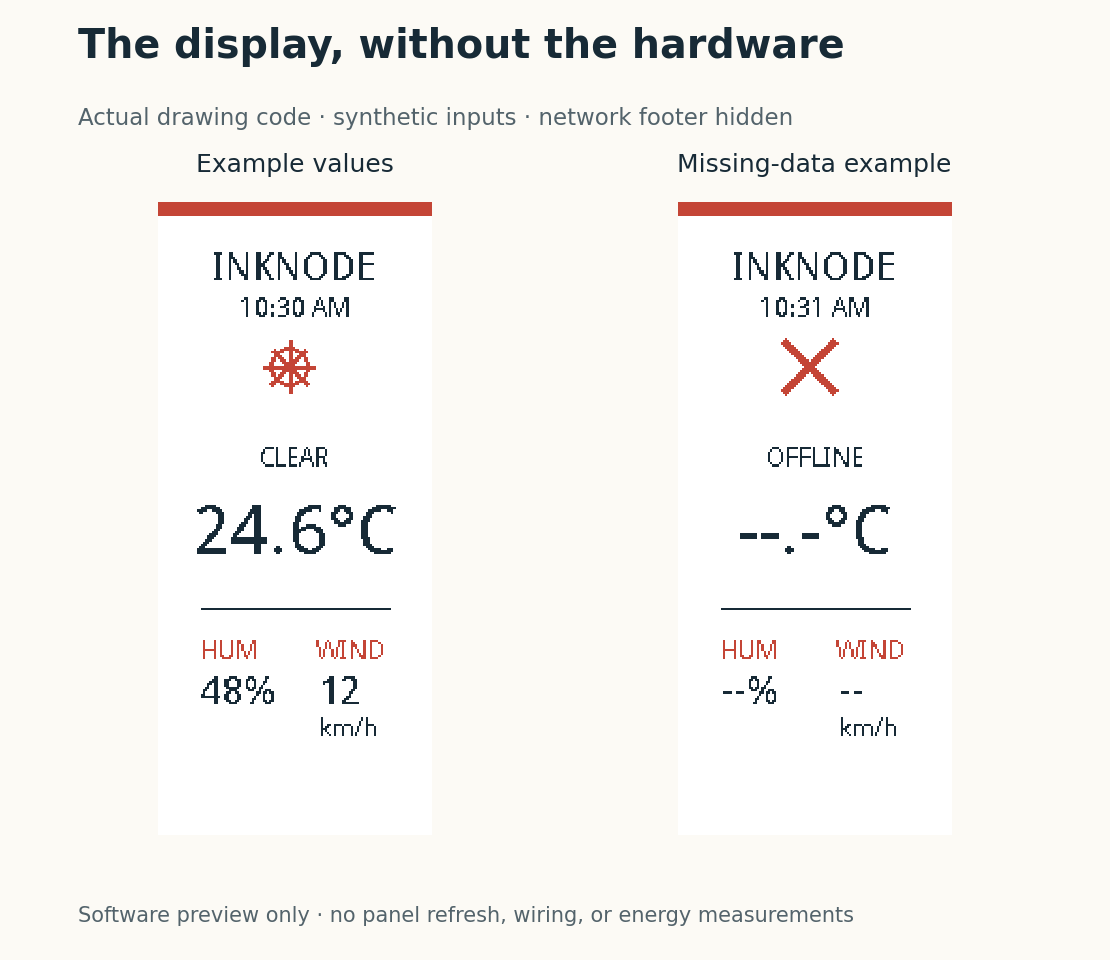 The actual drawing code with sample inputs. This is a software preview; the network footer is hidden.
Read frequently, reuse the result
The temperature and humidity values live in memory between updates. When the sensor timer expires, the program reads the sensor and replaces those values if the read succeeds. The next screen refresh uses the values already available.
That gives MQTT consumers a chance to receive local readings more frequently than the screen changes. It also avoids fetching the outdoor forecast every time a local measurement changes. The June version uses OpenWeatherMap for that forecast; some older documentation still refers to the previous provider.
The configured intervals work out to 360 sensor checks, 60 screen refreshes, and 6 weather requests per hour. They describe the schedule, not a count measured on hardware.
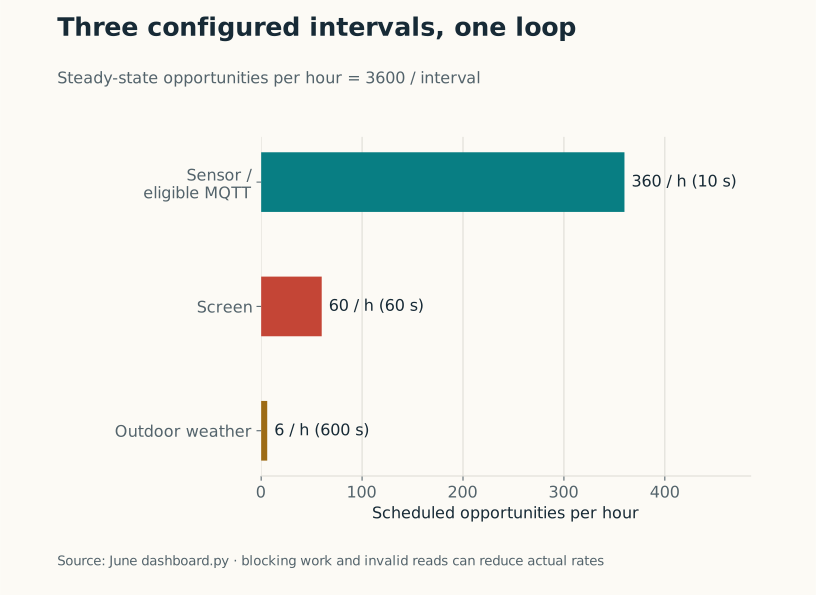
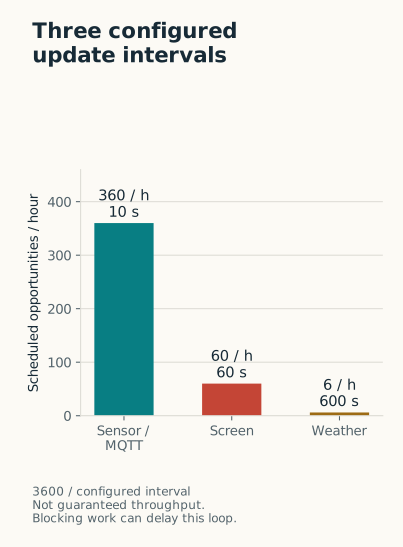
Calculated from the 10-, 60-, and 600-second intervals. Slow calls and failed reads can reduce the actual rate.
All three checks happen in one loop
Here is a shortened version of the scheduling code. The three update_* calls stand in for the corresponding bodies in dashboard.py:
1
2
3
4
5
6
7
8
9
10
11
12
13
14
15
16
while True:
    now = time.time()

    if now - last_weather >= 600:
        update_weather()
        last_weather = now

    if now - last_sensor >= 10:
        update_sensor_and_mqtt()
        last_sensor = now

    if now - last_screen >= 60:
        update_screen()
        last_screen = now

    time.sleep(1)
There are separate elapsed-time checks, but there is only one thread executing this loop. If update_weather() takes eight seconds, the sensor check waits behind it. Moving the loop into a background thread keeps the web interface separate; it does not make the three jobs run independently.
The timestamp is also captured before the work starts. Suppose the weather request begins at second 600 and returns at 608. last_weather is set to 600. If you wanted ten minutes after completion, you would record a new timestamp after the call. Which behavior you want depends on whether the interval describes start times or a pause between completed attempts.
Use a clock suited to elapsed time
The original loop uses time.time(), which returns wall-clock time. For elapsed-time checks, time.monotonic() is a better fit because adjustments to the system clock do not make the interval jump backward or forward.
A small next revision could also make missed intervals easier to reason about:
1
2
3
4
5
6
7
8
9
period = 10
next_read = time.monotonic()

while True:
    now = time.monotonic()
    if now >= next_read:
        read_sensor()
        next_read = time.monotonic() + period
    time.sleep(0.1)
This proposed pattern waits ten seconds after each completed read. It does not catch up missed samples, and a slow read still blocks the loop. It is useful when that behavior is acceptable. If sensor timing needs to remain independent of weather requests, put acquisition in separate tasks and let the screen read their latest timestamped results.
Separate a missing reading from an old one
The display code draws black and red image planes on a 128-by-296-pixel canvas. It gives the temperature most of the space and puts humidity and wind below it. A hardware wrapper passes those planes to the Waveshare driver.
A preview is handy for checking that layout before touching the panel. It also makes missing values visible. A failed read at startup leaves placeholders; a failed read after a successful one can leave an older value in memory. Those situations should eventually have different labels. Otherwise a screen that looks normal may simply be showing the last result it had.
The Node-RED freshness example shows a straightforward way to track time since an arrival. The same idea applies here, except each source needs its own timestamp: a fresh room reading says nothing about the age of the outdoor forecast.
For troubleshooting, I would first record the duration of the weather call and physical display update. If they regularly delay sensor work, separate those jobs. If they are short and predictable, the simple loop may be enough. There is little benefit in adding a scheduler before knowing which operation is causing the wait.
Source: June dashboard code. The v1.0.1 release contains the installable image. The application layout is part of InkNode; the physical display driver comes from Waveshare.
Project work: June 2026. Written in October 2026; revised November 2026. The monotonic-clock example is a suggested change.